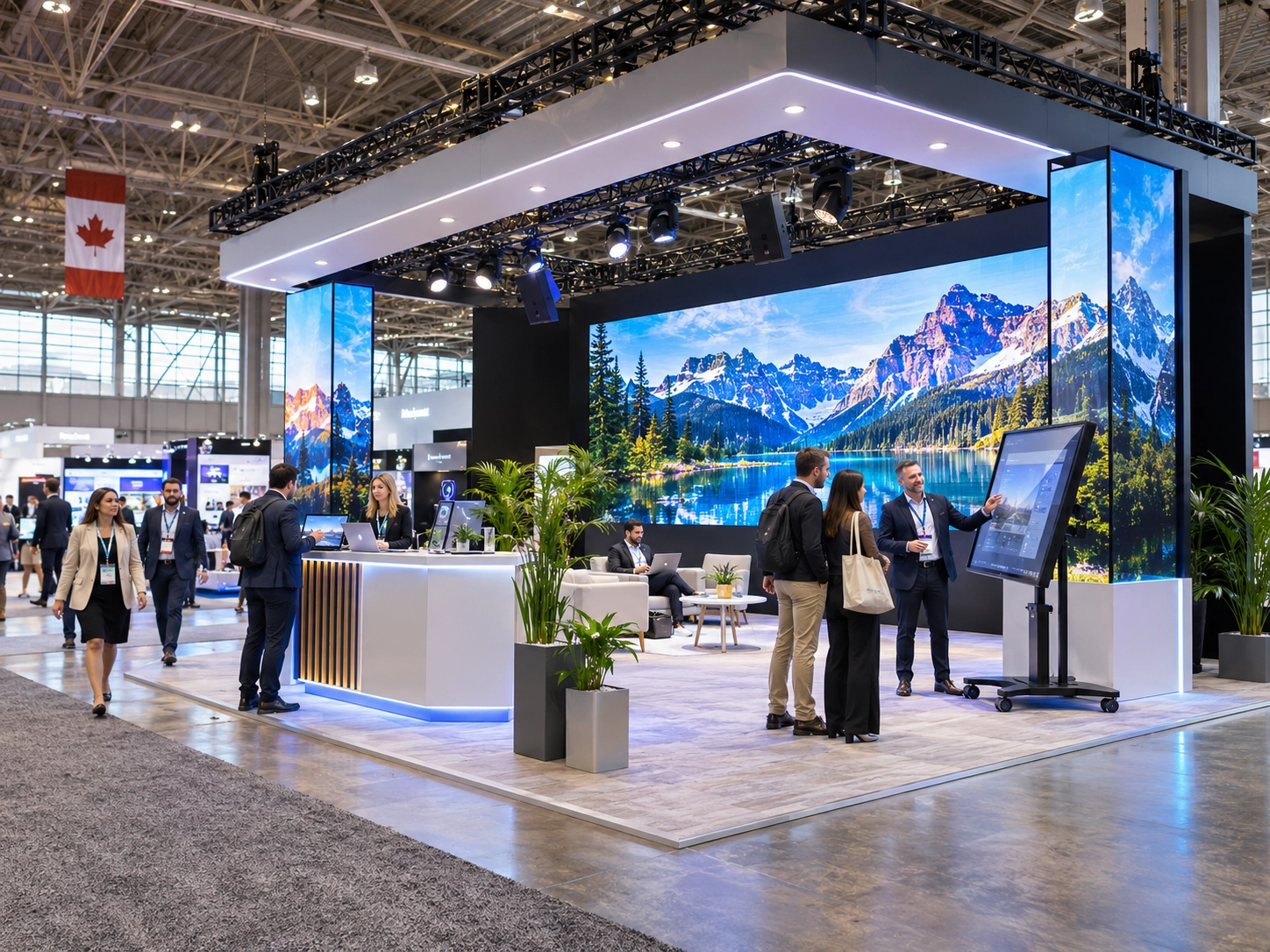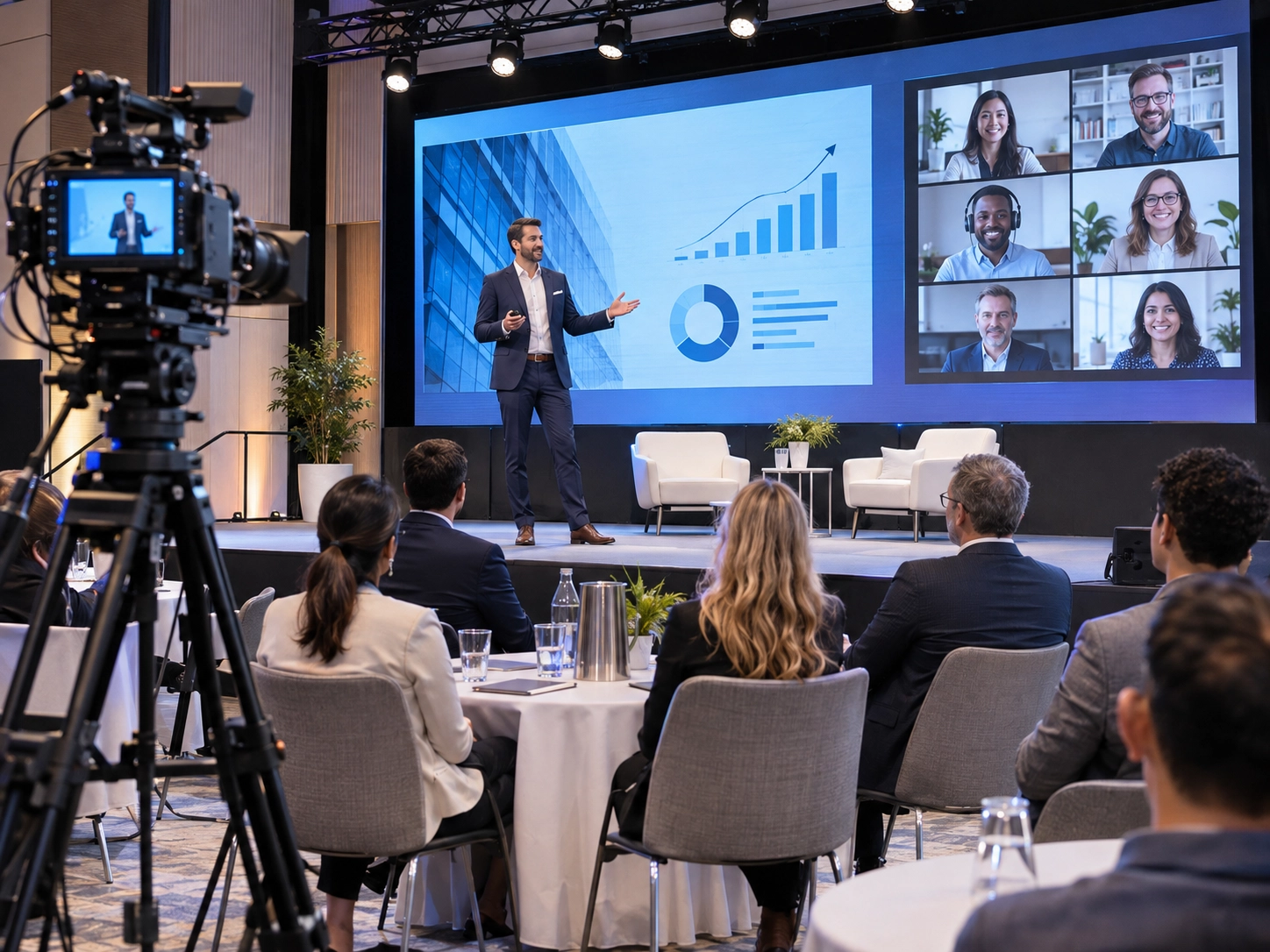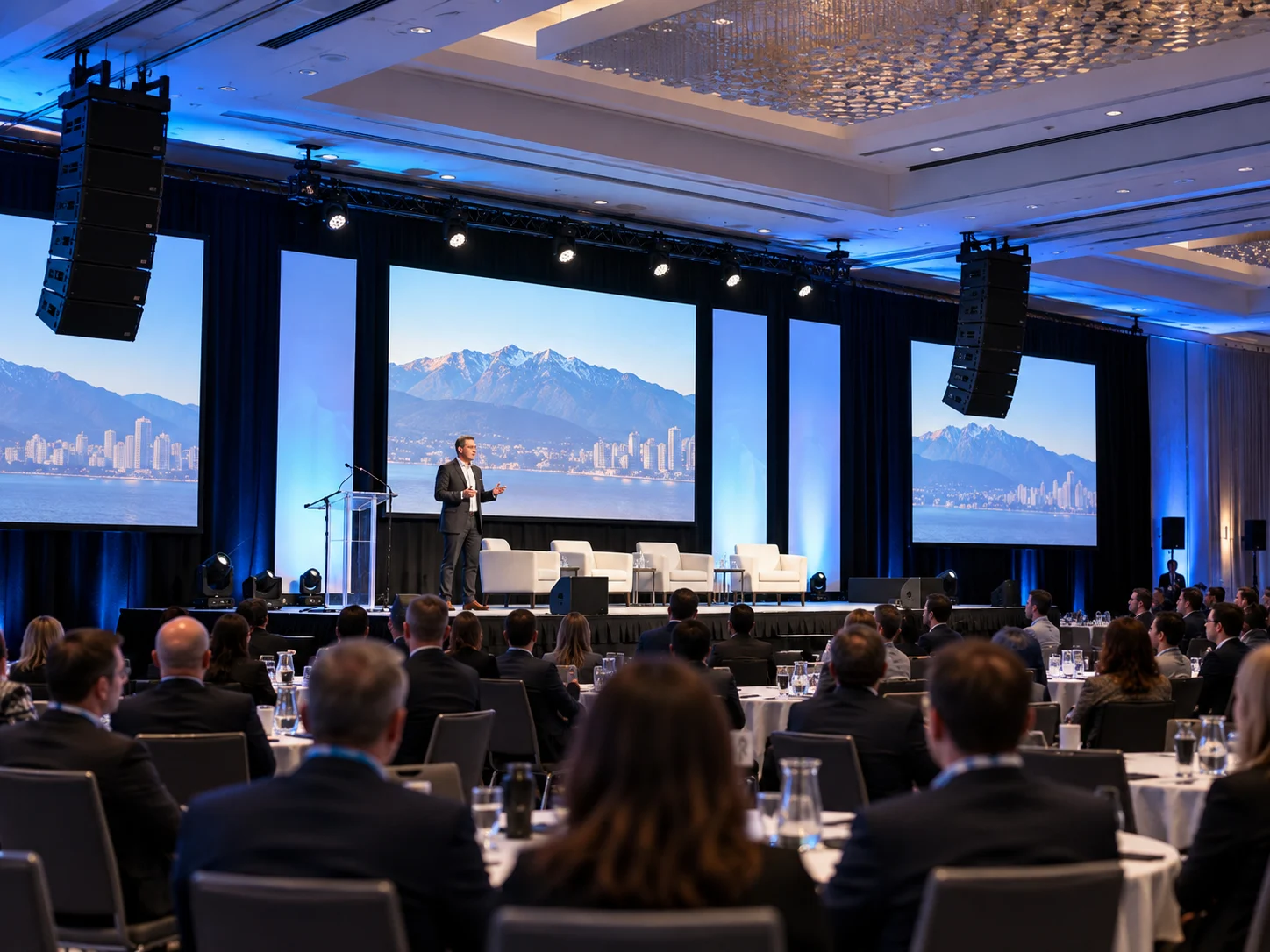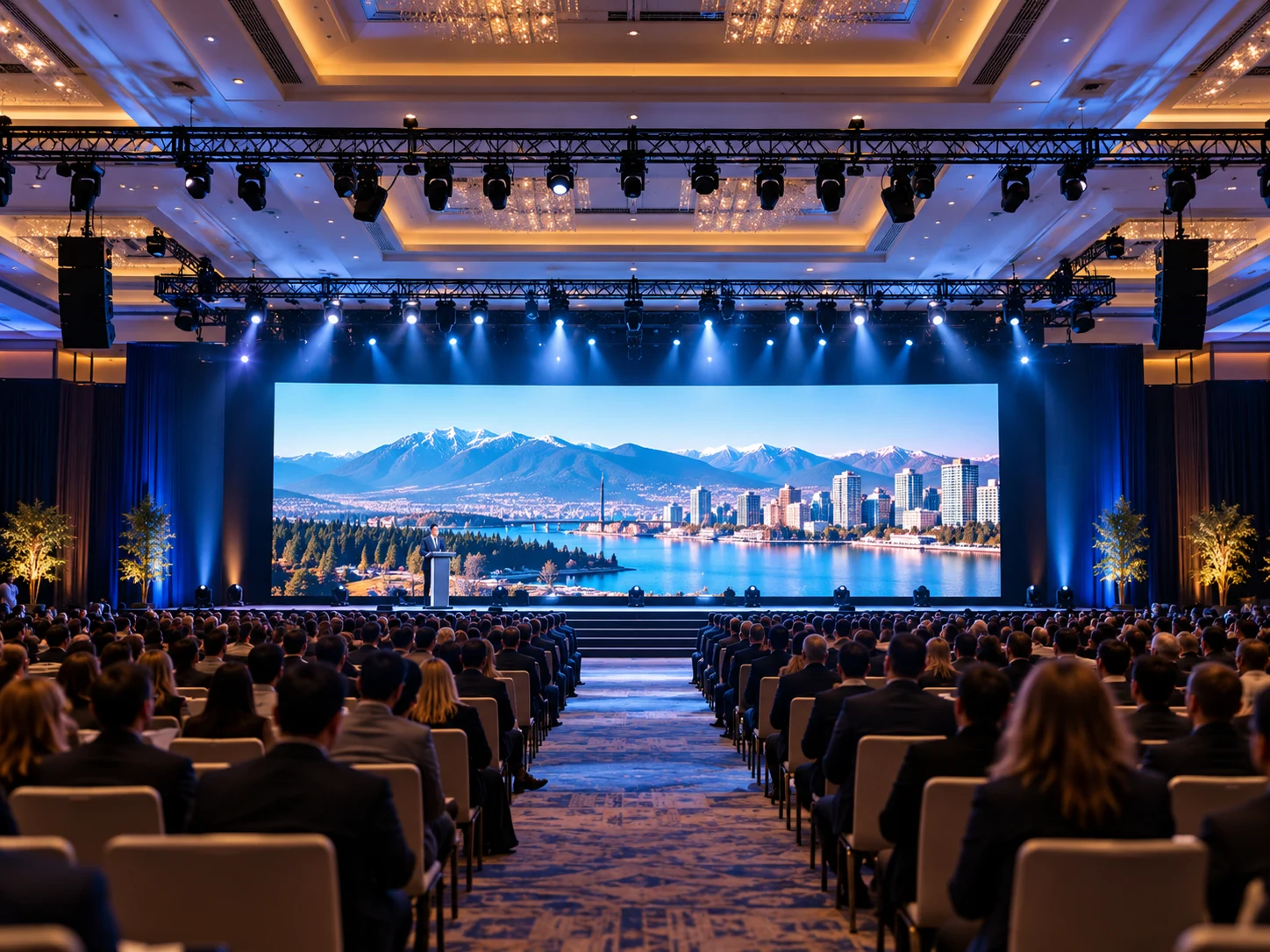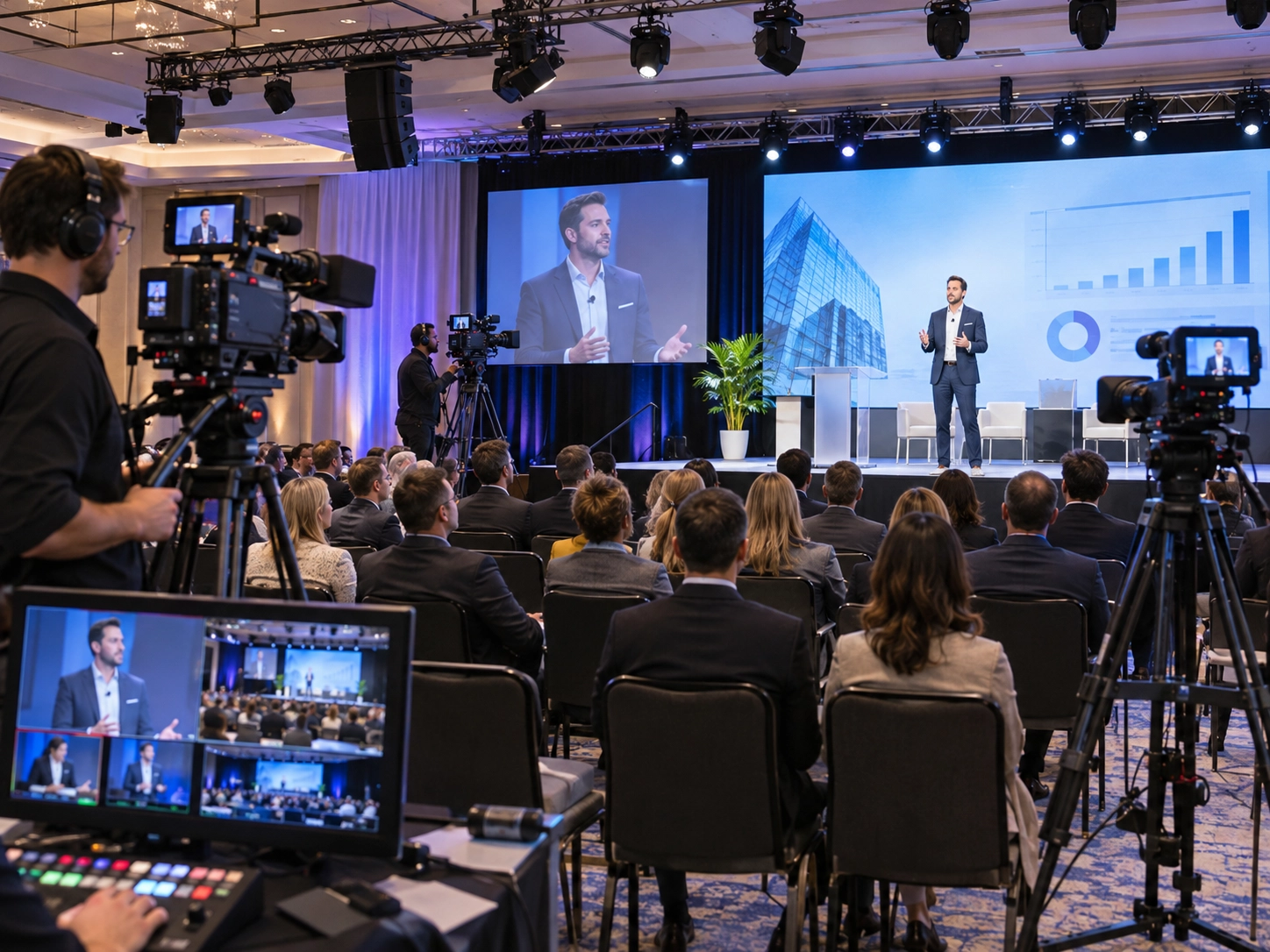
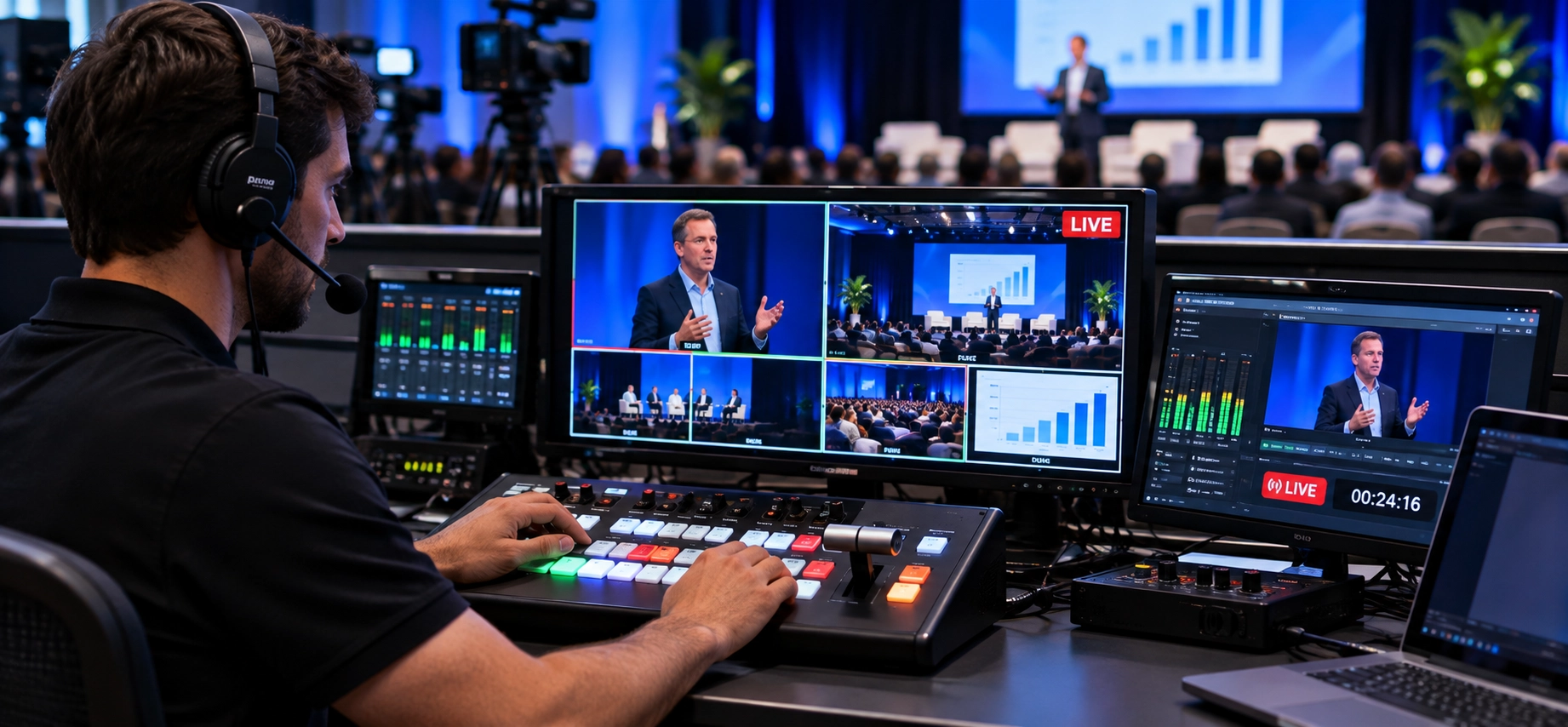
Multi-camera live streaming combines multiple camera feeds into a single, professionally managed broadcast. Instead of showing one static angle, event organizers can switch between speakers, presentations, panel discussions, and audience reactions in real time.
For conferences, executive meetings, and hybrid events, a reliable multi-camera live streaming setup requires cameras, video switching equipment, professional audio, streaming software, and a stable internet connection.
Businesses planning corporate event live streaming can benefit from professional live streaming services in Vancouver that coordinate these systems into one production workflow.
This guide covers camera placement, equipment, setup methods, production costs, and practical ways to avoid technical problems.
Why Use Multi-Camera Live Streaming for Corporate Events?
A single camera can capture a speaker, but multi-camera production creates a more engaging experience by showing the right perspective at the right moment.
For corporate event streaming, multiple angles improve visual storytelling, make presentations easier to follow, and support a more professional experience for remote audiences.
| Corporate event | Benefits of multi-camera coverage |
|---|---|
| Business conferences | Alternate between speakers, stage views, and presentations |
| Panel discussions | Capture individual speakers and group reactions |
| Product launches | Show product details alongside presenter footage |
| Executive town halls | Combine leadership presentations with audience questions |
| Hybrid events | Connect in-person activity with remote participants |
A successful broadcast also depends on sound quality. Even excellent footage becomes difficult to follow when speech is unclear. A properly configured event sound system helps maintain clear communication throughout presentations, panel discussions, and live Q&A sessions.
How to Plan a Multi-Camera Live Streaming Setup
Professional multi-camera event production starts with understanding the venue, audience, and event schedule—not choosing equipment.
Before designing the event live streaming setup, establish:
- Event format, duration, and number of speakers.
- In-person attendance and remote audience requirements.
- Streaming destination and presentation sources.
- Camera positions, stage layout, and operator locations.
- Recording, graphics, and backup requirements.
A corporate event AV checklist helps coordinate cameras with lighting, audio, screens, power, and networking before production begins.
How Many Cameras Do You Need for a Corporate Event?
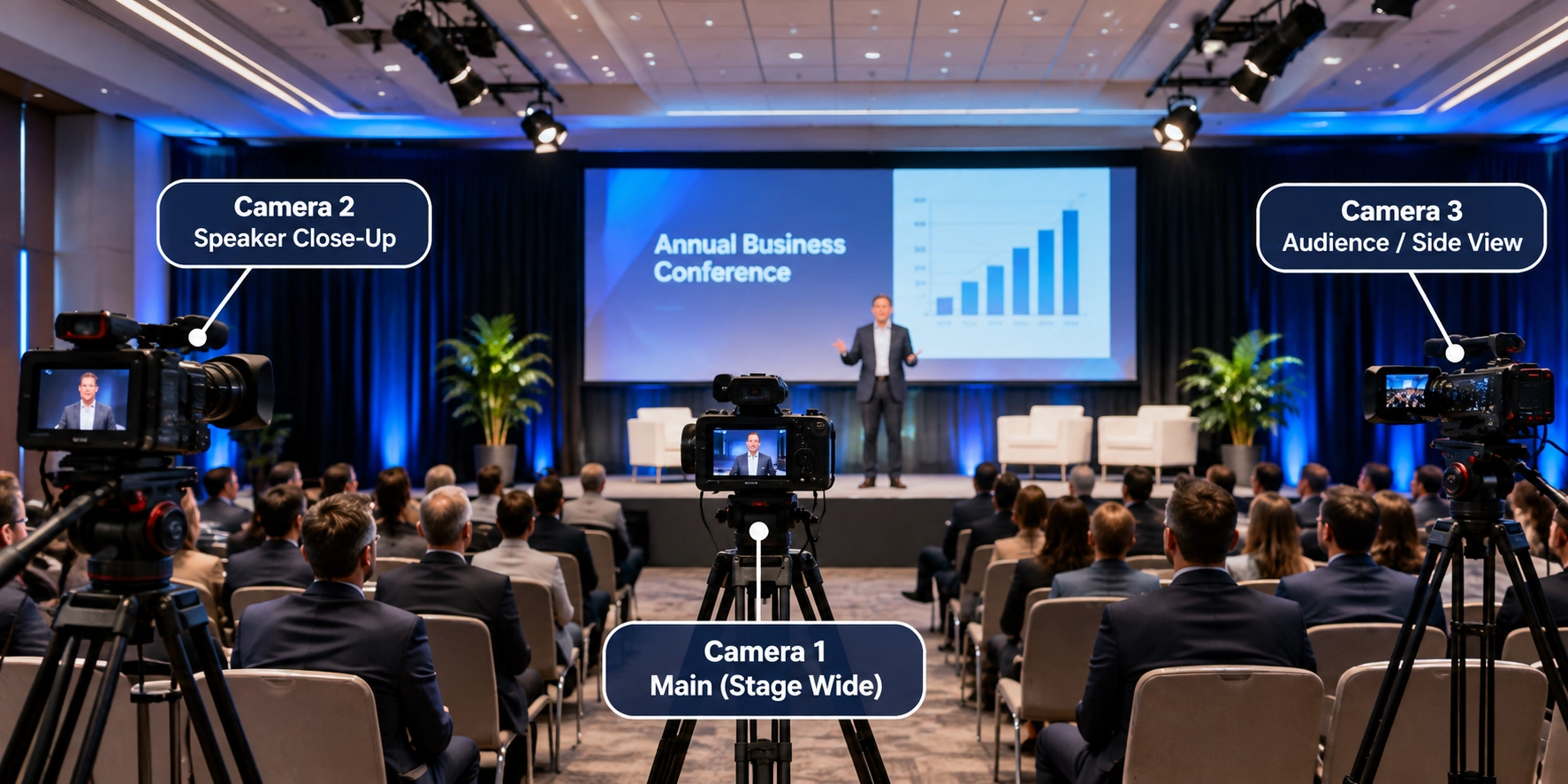
The ideal multiple camera streaming setup depends on the room layout and the number of activities happening simultaneously.
| Setup | Best for | Recommended camera coverage |
|---|---|---|
| 2 camera live stream setup | Interviews, small meetings, executive presentations | One wide shot and one speaker close-up |
| 3 camera live stream setup | Conferences, panels, corporate town halls | Wide stage view and two alternate angles |
| 4-camera setup | Product launches, larger hybrid events | Stage, speaker, audience, and flexible detail shots |
A technical site visit helps determine suitable camera placement, cable routes, and control positions.
Camera locations should also complement the corporate event stage design, ensuring that screens, podiums, and scenic elements do not obstruct important views.
Once positions are confirmed, the production team should prepare a run of show identifying speaker transitions, presentation changes, and broadcast cues.
What Equipment Is Needed for Multi-Camera Live Streaming?
Choosing the right multi camera live streaming equipment depends on event complexity, venue conditions, and production requirements.
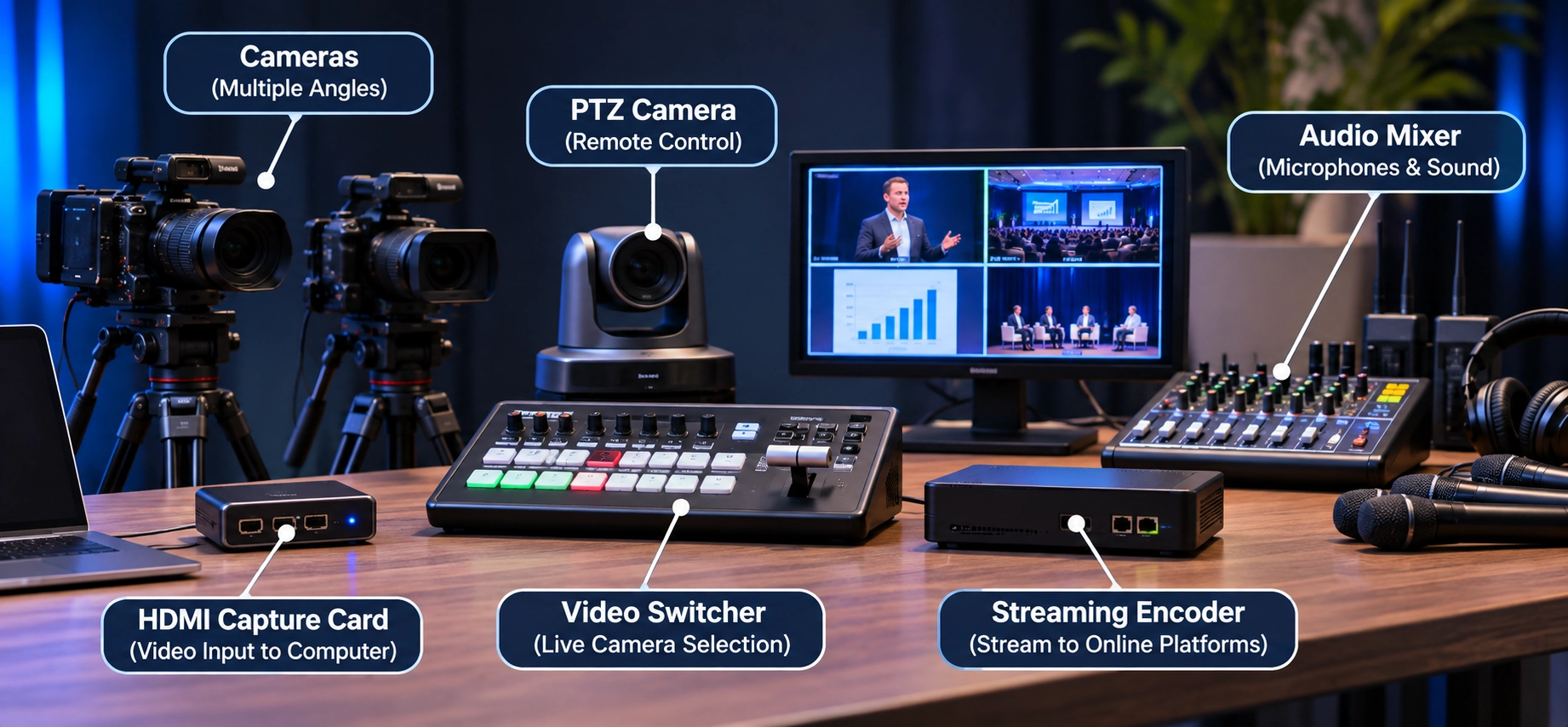
| Equipment | Purpose |
|---|---|
| Professional cameras and PTZ cameras | Capture different angles with manual or remote camera control |
| Video switcher or vision mixer | Select and combine live camera feeds |
| HDMI capture cards | Bring compatible video sources into a computer |
| Video encoder | Prepare the program output for streaming |
| Microphones and audio mixer | Deliver a controlled audio feed |
| Production monitors | Preview camera angles and the final broadcast |
A professional multi camera live streaming hardware setup may also require SDI cables, network equipment, power distribution, and backup recording devices.
Choosing Hardware, Software, or Cloud-Based Production
There are three common approaches to a multi camera switching and live streaming system.
| Production method | Suitable use | Main consideration |
|---|---|---|
| Hardware-based switching | Professional conferences and dedicated production crews | Reliable signal routing and on-site operation |
| Software-based switching | Smaller events and flexible production setups | Computer performance and device compatibility |
| Cloud-based production | Remote speakers and distributed production teams | Connectivity and platform capabilities |
Popular multi camera live streaming software options include OBS Studio and vMix. OBS supports scene-based switching, while vMix provides additional production features depending on the selected edition.
Audio, Lighting, and Presentation Integration
A professional broadcast requires more than clear camera footage.
Dedicated audio feeds, wireless microphones, and professional sound and audio services help deliver consistent speech clarity.
Similarly, camera-ready event lighting supports balanced exposure, natural skin tones, and consistent image quality across cameras.
Presentation screens must also be considered. When an LED wall forms part of the stage background, its brightness, refresh behavior, and content can affect the recorded image. Understanding how LED walls work helps production teams coordinate display systems with camera settings.
How to Connect and Configure Multiple Cameras for Live Streaming
Understanding how to connect multiple cameras for live streaming is essential for building a stable broadcast workflow.
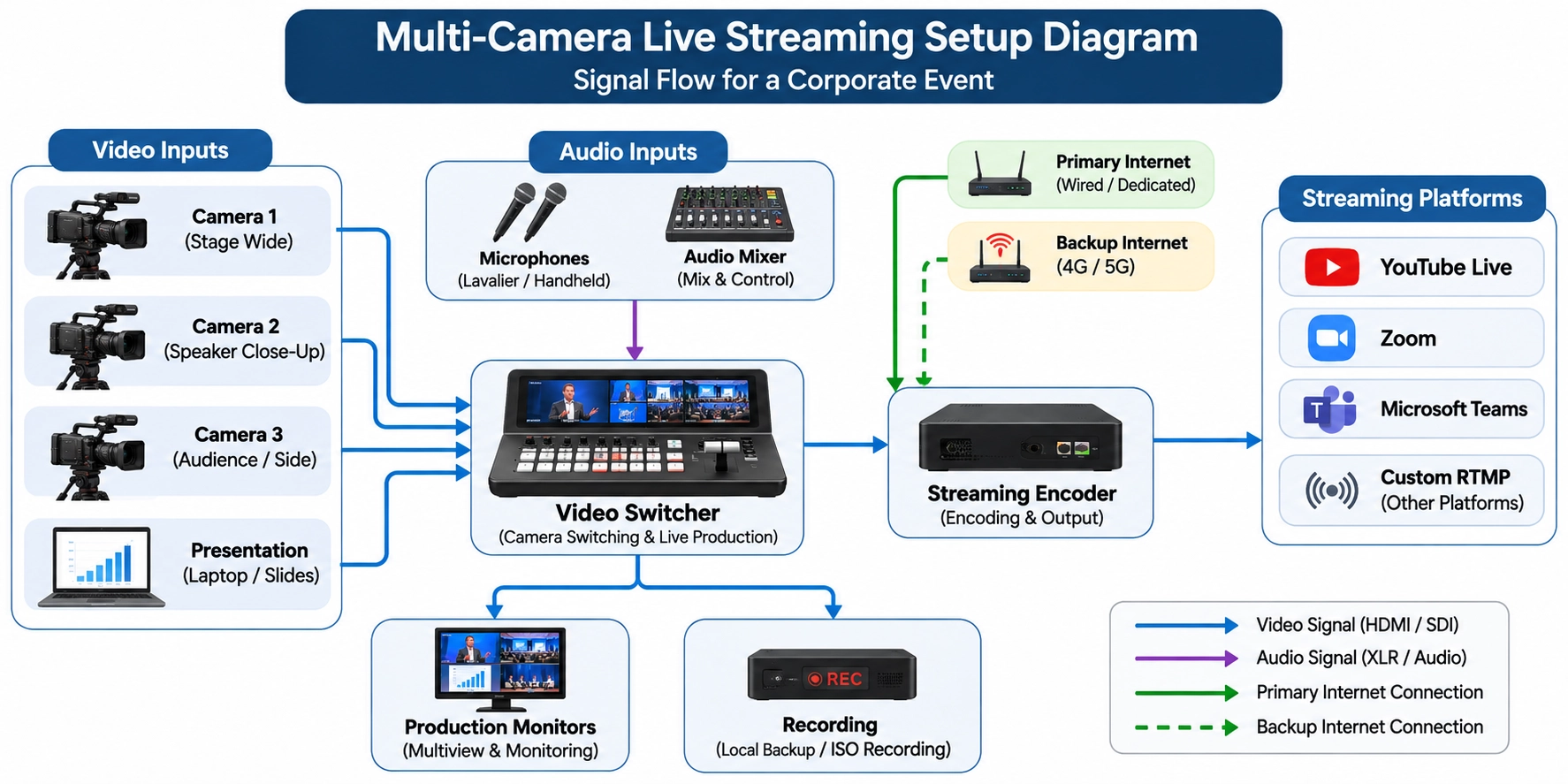
A typical multi camera live stream setup follows this signal path:
Cameras → Video Switcher → Streaming Encoder → Internet → Streaming Platform
Presentation laptops and audio mixers provide additional inputs to the production system.
For a computer-based multi camera setup for live streaming, compatible capture devices bring video sources into software such as OBS or vMix.
The setup process involves:
- Connect camera outputs through HDMI or SDI.
- Add camera feeds and presentation sources to the switching system.
- Match compatible resolutions and frame rates.
- Configure the audio mix and check audio/video synchronization.
- Set the output bitrate and connect through supported methods such as RTMP streaming.
- Verify the final output using a private test broadcast.
A dedicated presentation feed is often preferable to filming projected slides. Professional video and screen solutions can help coordinate presentation playback, display outputs, and live video sources.
How to Create a Multi-Camera Live Streaming Setup Diagram
A multi camera live streaming setup diagram should clearly identify camera inputs, audio routing, video switching, encoding, and streaming destinations.
For larger events, include the backup recording path and production monitors. This makes the multi camera live streaming system easier to configure, troubleshoot, and operate.
How to Manage Live Camera Switching During Corporate Events
During a broadcast, the technical director manages the multi-camera production workflow and determines which camera should appear on screen.
Effective live video switching should follow the speaker and presentation rather than introduce unnecessary visual effects.
For example:
- Use a wide shot when introducing a conference session.
- Switch to a close-up when a speaker begins presenting.
- Display a dedicated slide feed when detailed information appears.
- Alternate camera angles during panel discussions.
- Return to a wide view during transitions or audience interaction.
A technical cue sheet coordinates these decisions with presentation playback, graphics, lighting changes, and speaker introductions.
This structured approach supports broadcast-quality live streaming and reduces distracting camera transitions.
How to Prevent Technical Problems During a Multi-Camera Live Stream
Reliable corporate live event production requires proactive monitoring, technical rehearsals, and a practical backup strategy.
Before going live, check internet upload speed, available bandwidth, network stability, and the selected streaming platform.
A dedicated wired connection is generally preferable to shared venue Wi-Fi, while a backup internet connection provides an alternative if the primary connection fails.
Common Multi-Camera Streaming Problems and Solutions
| Problem | Possible cause | Recommended solution |
|---|---|---|
| Video freezes | Unstable network connection | Check bandwidth and adjust streaming bitrate |
| Delayed audio | Audio and video processing differences | Correct synchronization settings |
| Camera feed disappears | Cable or signal interruption | Check connections and use a backup source |
| Presentation slides look unclear | Poor capture method or layout | Use a dedicated presentation feed |
| Stream disconnects | Internet or platform interruption | Activate the tested backup workflow |
For important broadcasts, keep a local backup recording. Where post-event editing requires individual camera feeds, ISO recording provides additional flexibility.
A full rehearsal should test switching, microphones, graphics, presentation playback, and the streaming destination together—not as separate systems.
How Much Does a Multi-Camera Live Streaming Setup Cost?
The multi-camera streaming cost depends on the production requirements rather than camera count alone.
Factors affecting event live streaming cost include:
| Cost factor | What influences the budget |
|---|---|
| Number of cameras | Equipment, operators, and coverage requirements |
| Event duration | Setup, rehearsal, live production, and teardown |
| Venue complexity | Cabling, networking, access, and stage layout |
| Technical crew | Camera operators, audio engineer, and technical director |
| Broadcast requirements | Graphics, streaming platforms, recording, and backups |
DIY vs. Professional Live Streaming Services
A small meeting may be manageable with a basic software-based setup.
However, conferences, product launches, and complex hybrid event production often require coordinated camera operation, audio engineering, and technical support.
Professional corporate event production services bring these systems together under a single production plan, helping organizers reduce technical complexity.
The best approach depends on the event’s budget, audience expectations, and reliability requirements.
Multi-Camera Live Streaming Setup: Frequently Asked Questions
Can You Use OBS Studio for Multi-Camera Live Streaming?
Yes. A multi camera live streaming OBS setup can combine compatible camera inputs, presentation sources, audio, and graphics. The computer and capture hardware must support the selected video settings.
Can Multiple Cameras Stream to Zoom or YouTube Live?
Yes. Multiple cameras can feed a switching system that sends one program output to Zoom or YouTube Live through supported streaming or video-input methods.
Can You Stream Multiple Cameras from Different Locations?
Yes. Remote production can combine feeds from different locations using compatible contribution tools and cloud-based or remote production systems. Reliable connections and latency management are essential.
Plan a Professional Multi-Camera Live Stream with Danesh Production
A successful multi-camera live streaming setup for corporate events combines thoughtful planning, suitable equipment, reliable connectivity, and coordinated production.
Danesh Production supports businesses throughout Greater Vancouver with professional audio, lighting, video, and live streaming solutions for conferences, executive meetings, and hybrid events.
Planning your next corporate broadcast? Discuss your corporate live streaming setup with our team to develop a production plan tailored to your venue, audience, and event requirements.